


 0
0 Created: Aug 6,2025 | Battlefield 6
How to Activate Secure Boot for Battlefield 6?

If you want to play Battlefield 6 on your PC, activating Secure Boot is essential. Below is a step-by-step guide to help you complete the Secure Boot activation process.
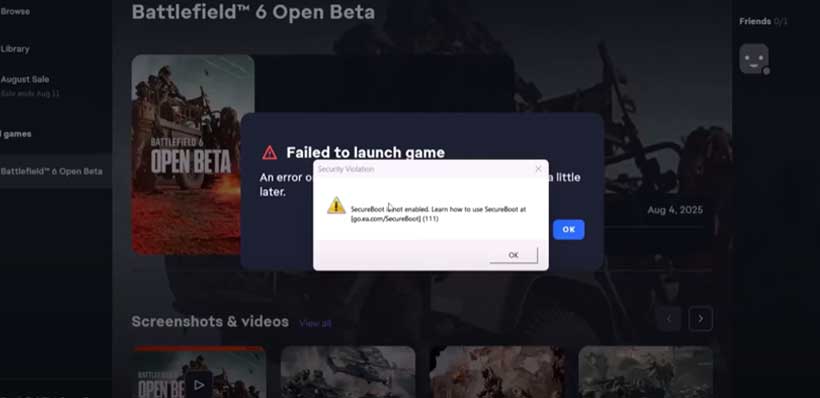
Notes
Before activating Secure Boot or changing PC settings, please note the following:
- Risk Warning: Activating Secure Boot and changing system settings should be done with caution and at your own risk. If you are unsure about the steps, please consult a qualified professional or contact your device manufacturer's technical support.
- Official Reference: This article is based on official instructions provided by EA, which can be found on EA's support page.
- Avoiding Mistakes: Incorrect settings can cause system problems or even damage your device, so make sure you fully understand each step.
Checking Secure Boot Status and Prerequisites
Before beginning, please confirm that your system supports Secure Boot and that the required hardware meets the requirements.
1. Verify Secure Boot is Enabled
- - Press the Windows key + R to open the Run window.
- - Type `msinfo32` and press Enter.
- - In the System Summary, check the following:
- - BIOS Mode: It should display UEFI.
- - Secure Boot Status: It should display On.
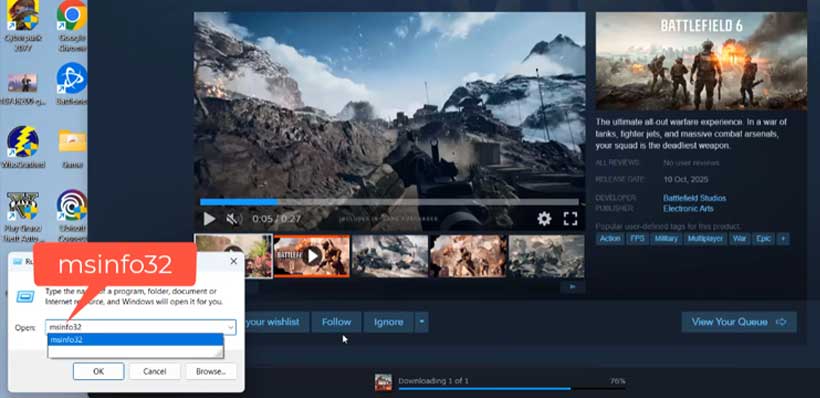
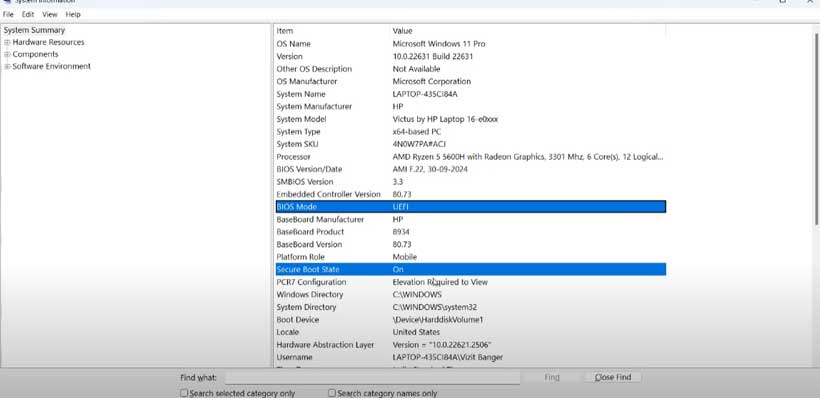
If Secure Boot is not enabled, continue with the following steps.
2. Check the BIOS Mode
- - If the BIOS Mode displays UEFI, you can activate it directly.
- - If the BIOS Mode displays Legacy, check whether the Windows system partition is formatted as GPT (GUID Partition Table). If not, convert it to GPT.
3. Verify that TPM 2.0 is enabled
- - Press `Windows Key + R` to open the Run window.
- - Type `tpm.msc` and press Enter.
- - In the Status window, check whether "TPM Enabled" is displayed.
If TPM is not enabled, contact the device manufacturer for instructions on how to enable it.
4. Check the partition style (MBR or GPT)
- - Press Windows Key + X and select Disk Management.
- - Find the disk where Windows is installed (usually drive C).
- - Right-click the disk and select Properties.
- - Check the partition style in the Volumes tab:
- - If it says "GUID Partition Table (GPT)", no further action is required.
- - If it says "MBR", follow these steps to convert it to GPT:
- -- Press Windows Key + R to open the Run window.
- -- Type cmd and press Ctrl + Shift + Enter to open a command prompt as an administrator.
- -- Enter the following command to validate:
- --- mbr2gpt /validate /disk:0 /allowFullOS (replace `disk:0` with the disk number displayed in Disk Management).
- -- Enter the following command to convert:
- --- mbr2gpt /convert /disk:0 /allowFullOS (replace the disk number as well).
- - After completing this, you may need to enter the BIOS setup and switch the system's boot mode to UEFI.
Activating Secure Boot
After completing the above checks, you can activate Secure Boot by following these steps:
- Press the Windows key and type "Options for advanced startup" in the search bar.
- Click "Restart now" under "Advanced startup" to enter the Advanced startup menu.
- Select "Advanced options" from the menu, then click UEFI Firmware Settings.
- Once in the BIOS, find the "Boot" tab. If you don't find it, press F9 and search for the relevant setting.
- Enable Secure Boot in the "OS Type" section.
- If there is an "OS Type" option, set it to UEFI mode.
- Go to the "Exit" tab and select Save Changes and Reset.
Once completed, your PC will restart with Secure Boot enabled. In some cases, a second reboot may be required to ensure full activation.
Problem Solving Tips
If you encounter problems that cannot be resolved using the above steps, please contact your device manufacturer or professional technical support immediately to avoid system failures caused by incorrect operation. Following the above steps, you should be able to successfully activate Secure Boot and play Battlefield 6. Happy gaming!
Most Popular Posts
- Battlefield 6 Season 1 Ultimate Weapon Tier List: Best Guns, TTK Data, Loadouts, and Pro Tips
- Top 10 Low-Recoil BF6 Guns: Most Accurate Battlefield 6 Weapons
- Battlefield 6 AFK XP After Patch: Easy Passive Leveling Using 4-Minute Portal Lobbies
- How To Unlock the PSR (M98B) in Battlefield 6 Fast?
- Battlefield 6 Fast Weapon Leveling Guide: Unlock Attachments
- Battlefield 6 Top 10 Meta Weapons: Builds, TTK Insights, and Practical Tips
Popular Category Lists
- ARC Raiders / (343)
- Grow a Garden / (292)
- CoD: Black Ops 7 / (167)
- Star Citizen / (160)
- MLB 26 / (159)
- Monopoly Go / (152)
- ARK Survival Ascended / (126)
- Steal a Brainrot / (98)
- Blox Fruits / (74)
- Adopt Me / (73)
- Forza Horizon 6 / (72)
- Sailor Piece / (68)
- Grow a Garden 2 / (68)
- Diablo IV / (62)
- CoD: BLACK OPS 6 / (55)
- Path of Exile 2 / (48)
- Monster Hunter Wilds / (46)
- Aion 2 / (45)
- Windrose / (44)
- Donut SMP / (41)