


 0
0 Created: Oct 4,2025 | CoD: Black Ops 7
COD Black Ops 7: The Best Settings Optimization Guide

If you're diving into the adrenaline-pumping action of Call of Duty: Black Ops 7 Open Beta, you know the critical smooth gameplay and stunning visuals are for best experience. But let's face it—default settings don't always cut it. To this end,let's break down the best in-game settings step-by-step to help you squeeze every ounce of power from your system, ensuring buttery-smooth gameplay.
Graphics Presets
Before tweaking individual settings, let's explore how different graphics presets impact FPS. Using a high-performance GPU like the 3080 Ci at 2K resolution, here's what the benchmarks reveal:
| Preset | FPS | Performance Notes |
|---|---|---|
| Minimum | ~101-104 | Best For Competitive Players; Sacrifices Visuals |
| Basic | ~101-104 | Similar To Minimum; Not Much Difference |
| Balanced | ~95-96 | A Slight Drop In Fps But Improved Visuals |
| Ultra | ~80 | Great Visuals But Noticeable Fps Dip |
| Extreme | ~78-79 | Stunning Visuals; Trade-off In Performance |
As you can see, lower presets deliver significantly higher FPS, making them ideal for competitive gameplay. However, if you're willing to sacrifice a bit of performance for better visuals, balanced or ultra settings might be worth exploring.
Display Settings
Now that we've covered presets, let's tweak display settings to ensure optimal performance.
| Display Mode | Set To Full Screen Exclusive For The Lowest Input Latency And Highest Fps. Borderless Full Screen Is Fine If You Frequently Alt-tab. |
| Screen Refresh Rate & Resolution | Match These Settings To Your Monitor's Specs For The Smoothest Experience. These Options Are Only Adjustable In Full Screen Exclusive Mode. |
| Aspect Ratio | Personal Preference; Stick To Native Unless Experimenting With Ultra-wide Resolutions |
| NVIDIA Reflex Low Latency | Set To On For Most Systems. Use On + Boost Only If You Have A Low-powered Cpu, Though It May Cost 2-3% Fps |
| Custom Frame Rate Limit |
|
| HDR | Enable If You Have An Hdr-capable Display For Richer Visuals. Otherwise, Leave It Off—It Won't Affect Fps Significantly |
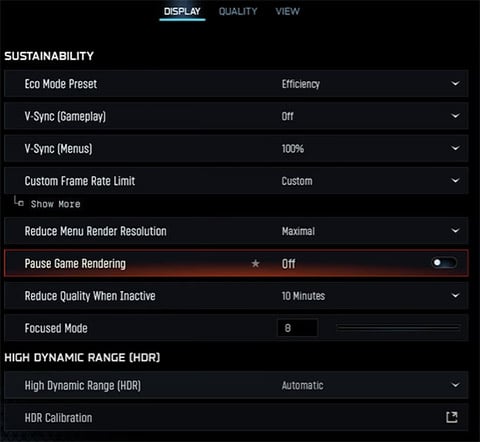
Note: Restart Shaders Preloading. Once you've adjusted these settings, restart shaders preloading for smoother textures and optimized performance.
View Settings
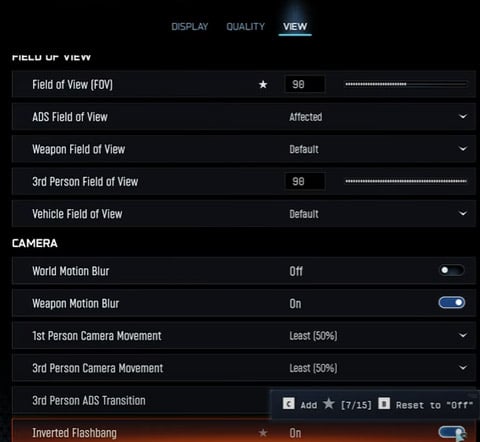
The View Settings tab is where you can adjust how your game looks and feels while playing. Let's break down each option and explain what works best:
| Motion Reduction Preset |
|
| Field of View (FOV) |
|
| ADS Field of View & Weapon Field of View |
|
| World Motion Blur |
|
| Weapon Motion Blur |
|
| Camera Movement |
|
| Inverted Flashbang |
|
Upscaling Options
The Upscaling settings are where you can make significant improvements to FPS while maintaining visual fidelity. Start with the Minimum preset and gradually increase settings based on your system's performance. This ensures a smooth start while allowing room for improvement.
Upscaling and Sharpening
This is a game-changer for performance optimization.
| Option | Analyze | Recommended |
|---|---|---|
| AMD FSR 1 & 3 | Fidelityfx Super Resolution Boosts Fps With Minimal Quality Loss | Fsr3 Set To Quality"Mode" |
| Nvidia DLSS | Ai-based Upscaling That Provides Excellent Visuals And Performance | Dlss With Cnn Model Set To "Quality" |
| FX CAS | Image Sharpening Without Upscaling | Optional; Minimal Fps Impact |
| NIS | Nvidia Image Scaling; Improves Performance But May Appear Blurry | Avoid; Dlss Is Superior |
| XSS | Intel's Upscaling Option With Various Presets From Ultra Quality To Performance | Use "Ultra Quality" For Clarity |
Render Resolution: Adjusting render resolution can significantly impact FPS. If performance is your priority, opt for lower resolutions combined with upscaling technologies like FSR or DLSS.
Variable Rate Shading: This setting dynamically adjusts shading quality in different parts of the screen. Turn it on when available, though the performance impact is negligible.
Graphics Optimization
When it comes to graphics optimization, every setting counts.
| Set Option | |
|---|---|
| Frame Generation | Avoid Using Frame Generation - While it can boost FPS (e.g., 140 FPS with it on versus 110 FPS with it off), the increased input latency can negatively impact gameplay responsiveness. Competitive players will benefit more from smoother input rather than higher FPS. |
| VRAM Scale Target | Default Setting: 70 - On most graphics cards, VRAM scale target doesn't significantly impact performance unless you're playing on larger maps like Warzone. For stability, leave it at 70 unless your system has ample VRAM (e.g., 12GB). In that case, feel free to increase it for higher-quality textures. |
Texture & Detail Settings
| Graphics Preset | Start Point: Set to "Minimum" to lower everything to the bare essentials. From here, selectively raise settings for better visuals without compromising performance. |
| Texture Resolution | Normal. Why Not Higher? Higher texture resolutions trigger on-demand texture streaming, which downloads large files from servers and causes unpredictable FPS drops (e.g., 110 FPS dropping to 60–80 FPS). |
| Texture Filtering (Anisotropic) | Ultra. Improves texture clarity with minimal performance impact. You'll notice sharper details on weapons, player models, and environments. |
| On-Demand Texture Streaming | Settings:
Prevents excessive downloads that can cause stutters during gameplay. |
Performance Tweaks
| Set Options | Recommendation |
| Depth of Field | Turn Off - Makes Spotting Enemies Easier By Eliminating Blur Effects In Distant Areas |
| Bullet Impacts & Persistent Effects | Turn On For Both - Adds Realism And Immersion Without Affecting Performance Significantly |
| Particle Resolution | Low - Explosions And Particle-heavy Scenes Can Cause Fps Drops; Keeping This Low Ensures Stability During Intense Moments |
Shadow & Lighting
| Set Option | Recommendation |
|---|---|
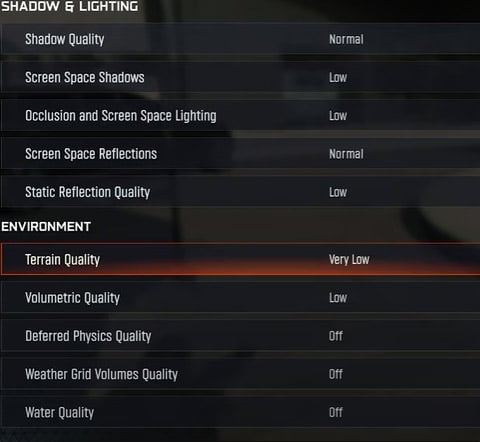
| Shadow Quality | Normal - Normal Strikes A Balance Between Crisp Visuals And Performance. While Higher Settings Look Better, They Can Cause Fps Dips (E.G., 187 Fps On Very Low Vs. 172 Fps On Ultra) |
| Screen Space Shadows & Reflections |
These settings have minimal performance impact but improve lighting realism in the game world. |
| Volumetric Quality | Low - Higher Settings Reduce Fps Noticeably (E.G., Low = 100 Fps Vs. High = 94 Fps). Volumetrics Mostly Affect Water And Fog Effects, Which Aren't Critical For Gameplay Clarity. |
Environment Quality
| Set Option | Recommendation |
|---|---|
| Terrain Quality | Medium or High - Minimal Performance Impact, But Improves Ground Textures And Overall Environment Aesthetics |
| Deferred Physical Quality & Weather Grid Volumes | Turn Off Both - These Settings Have Small But Noticeable Fps Impacts Without Adding Significant Visual Improvements (E.G., Deferred Physical Quality Off = 102 Fps Vs. High = 94 Fps) |
| Water Quality | Turn Off - Even During Heavy Interactions (E.G., Shooting At Water), Higher Water Quality Settings Drop Fps Unnecessarily (Off = 176 Fps Vs. High = 160 Fps) |
Optimizing FPS
Here's how you can maximize your FPS without compromising too much on visual quality:
- DLSS or FSR3: Set DLSS (Deep Learning Super Sampling) or FSR3 (FidelityFX Super Resolution) to Quality mode. If using DLSS, ensure it's on the CNN model for optimal results.
- Texture Quality: Keep this at Normal. Higher settings can strain your GPU unnecessarily.
- Anisotropic Filtering: Set this to Ultra for sharper textures without a significant performance hit.
- Shadow Quality: Stick to Normal to avoid blocky shadows while maintaining decent performance.
- Screen Space Reflections (SSR): Normal is sufficient here for a balance between visuals and FPS.
- Minimize Other Settings: Lower everything else (like ambient occlusion and post-processing) as much as possible or adjust based on your preference for visuals vs. performance.
Optimizing Black Ops 7 Open Beta isn't just about numbers—it's about creating an experience that feels seamless, competitive, and visually stunning. While every system is different, these settings provide a solid foundation for maximizing performance in the Black Ops 7 Open Beta.
Remember: Test your settings in-game and adjust based on your hardware capabilities and personal preferences. With these optimizations in place, you'll be ready to dominate the battlefield with smooth gameplay and sharp visuals!


The GGWTB Editorial Team features 10 full-time gaming editors and 23 specialist contributors, delivering hands-on tested walkthroughs, easter egg breakdowns, and game updates.
ELSA — who spearheads our in-depth COD: BLACK OPS 7, ARC Raiders guides, and patch notes—every guide is rigorously verified on live servers for accuracy.
Most Popular Posts
- Black Ops 7 Endgame Exotic Affinity Weapons Guide: Best Bonuses, Full Weapon List, and Farming Tips
- Black Ops 7 Season 1 Endgame Boss Fast Passing Guide: Colossus of Avalon & Toxic Tyrant Z‑Rex
- CoD BO7 Bot Lobbies Guide: Everything You Need To Know
- Black Ops 7 Endgame Skill Track Guides: Tactician + Bulldozer + Berserker
- Black Ops 7 Endgame Reloaded: Nightmare Boss, Exotic Upgrades, Best Skills & Fastest Progression
- Black Ops 7 Fast Weapon & Operator Leveling Max Mode-by-Mode Strategies
Popular Category Lists
- ARC Raiders / (355)
- Grow a Garden / (294)
- CoD: Black Ops 7 / (167)
- Star Citizen / (163)
- MLB 26 / (159)
- Monopoly Go / (153)
- ARK Survival Ascended / (128)
- Steal a Brainrot / (99)
- Blox Fruits / (74)
- Adopt Me / (74)
- Forza Horizon 6 / (72)
- Sailor Piece / (68)
- Grow a Garden 2 / (68)
- Diablo IV / (62)
- CoD: BLACK OPS 6 / (55)
- Aion 2 / (53)
- Path of Exile 2 / (48)
- Monster Hunter Wilds / (46)
- Windrose / (44)
- COD: Modern Warfare 4 / (43)