


 0
0 Created: Oct 23,2026 | COD: Modern Warfare 4
Modern Warfare 4 Best Settings: Controller Aim, PC FPS and Visibility

Start your Modern Warfare 4 settings with Tactical layout, a 0.80 ADS multiplier, 105 FOV, motion blur off, and frame generation off for competitive play. Then fix the specific failure—panic melee, overshooting, drift or frame-time spikes—instead of copying an entire preset.
These are recommended starting points, not measured performance claims. Menu availability and numeric scales must match your current build.
- Controller and Mouse: Fix Input Errors Before Sensitivity
- Controller Baseline
- Run a Three-Part Aim Check
- Dead Zones and Movement: Avoid the Hidden Trade-Offs
- Mouse Input
- PC Graphics: Chase Stable Frames, Not an Inflated Counter
- Competitive Graphics Baseline
- Diagnose the Bottleneck With Repeatable Runs
- FOV, Visibility and Audio: Preserve Useful Information
- Choose FOV by the Shots You Actually Take
- Reduce Masking Without Destroying Cues
- FAQ (Frequently Asked Questions)
- What are the best Modern Warfare 4 controller settings?
- Should I use 0.70 or 0.90 ADS sensitivity?
- Does FOV above 103 disable aim assist in Modern Warfare 4?
- Why does Modern Warfare 4 feel laggy despite high FPS?
- Should I use Affected or Independent ADS FOV?
Controller and Mouse: Fix Input Errors Before Sensitivity
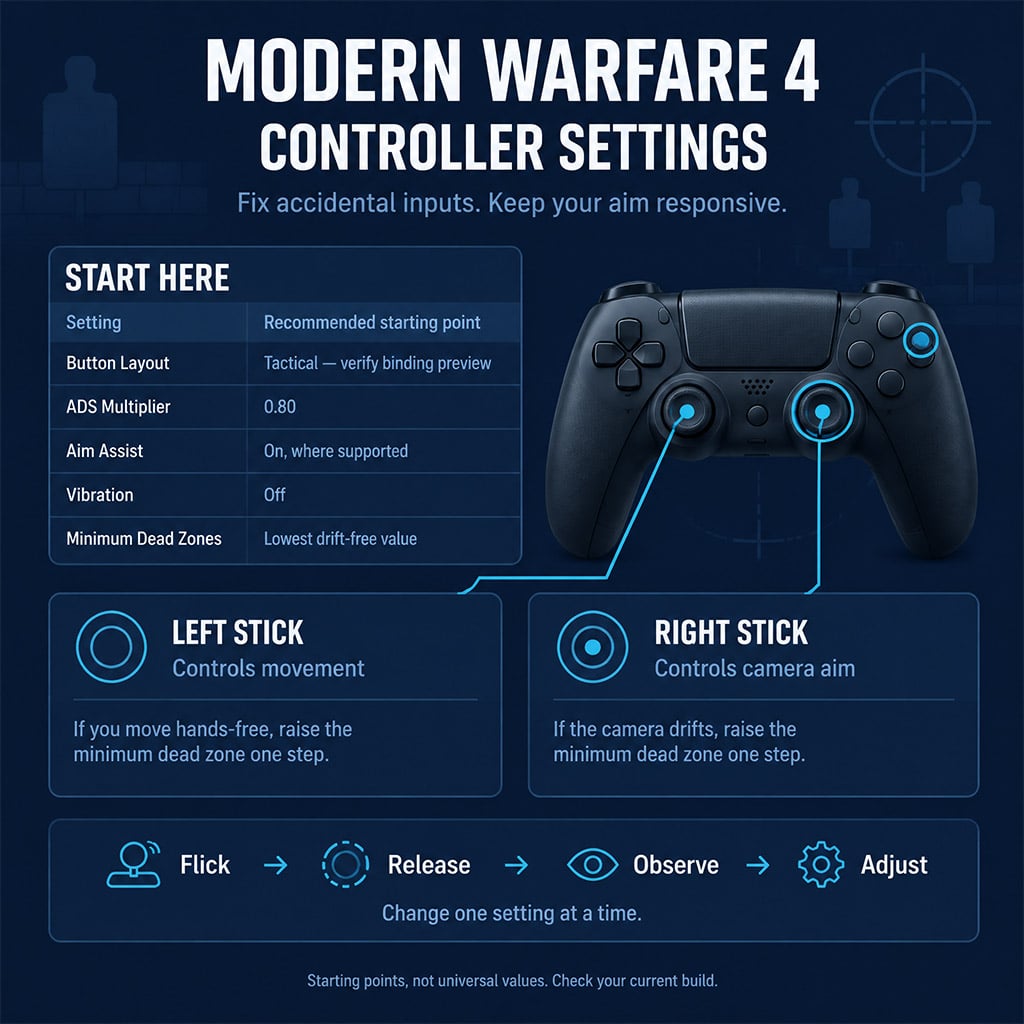
If you press the aiming stick during a fight, a sensitivity change will not fix the accidental melee. We recommend Tactical where its binding preview moves melee off R3/RS—but remember that accidental stick clicks now trigger crouch or slide instead.
Different mistake. Same lost fight.
Controller Baseline
Use this table to change the setting responsible for your missed input, not every slider at once.
| Setting | Starting Point | Change When… |
|---|---|---|
| Button layout | Tactical | You melee while tracking; verify the binding preview |
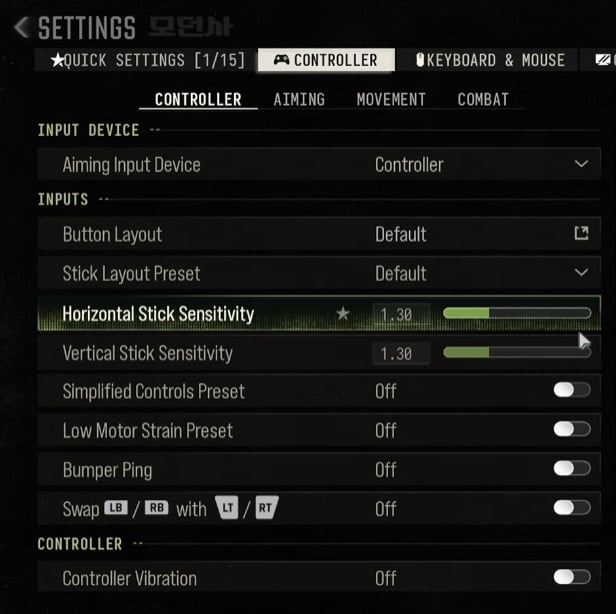
| Horizontal/vertical sensitivity | 1.35–1.50, if your menu uses this decimal scale | Hip-fire turns consistently lag behind targets |
| ADS multiplier | 0.80 | Lower toward 0.70 for overshooting; raise toward 0.90 for slow tracking |
| Response curve | Standard, then compare Dynamic | Initial stick movement feels wrong at otherwise usable sensitivity |
| ADS transition | Instant, if available | You prefer the ADS multiplier to apply when the transition begins |
| Aim assist | On | Keep enabled for controller play where supported |
| Minimum dead zone | Lowest drift-free value; try 0.02–0.05 on a normalized scale | Camera or movement continues after releasing a stick |
| Vibration | Off | Rumble distracts you or changes your grip |
Keep the ADS multiplier fixed while comparing response curves; changing both hides which adjustment helped.
Run a Three-Part Aim Check
For controller validation, use one weapon, one optic and one target distance throughout each comparison.
1. Tracking: Follow a moving target without firing. Raise ADS sensitivity by one small step only if you repeatedly fall behind before reaching full stick deflection.
2. Target switching: Alternate between two targets. Lower ADS sensitivity if your first movement repeatedly passes the target.
3. Recoil: Fire identical bursts at a wall. If the opening aim is accurate but bullets climb, work on recoil compensation or attachments before changing sensitivity.
Use 10 meters for close tracking and 30 meters for target switching where the practice space supports them. Repeat each drill three times; one bad attempt is not a diagnosis.
Dead Zones and Movement: Avoid the Hidden Trade-Offs
Set the controller down, then flick and release each stick separately. Raise the relevant minimum dead zone one step at a time until both the camera and character remain still.
A lower maximum dead zone reaches full input sooner; it does not increase your character's top speed. Avoid aggressive reductions if you need controlled walking or partial strafing.
If automatic tactical sprint repeatedly catches you entering a doorway with your weapon lowered, disable that automation and sprint deliberately between cover. Standard automatic sprint can still carry a sprint-to-fire cost.
For slide/dive and interact/reload settings, follow the menu's binding preview. Slide Only removes dive access; it does not prove that every slide animation becomes faster. Prioritize reload in ordinary gunfights and interaction in loot-heavy modes only if shared-button mistakes are costing you.
Mouse Input
If mouse aim feels inconsistent, disable operating-system pointer acceleration and any in-game acceleration option offered. Keep DPI fixed while tuning game sensitivity.
Start at 1,000 Hz polling; compare higher rates only if frame times remain stable. Maximum polling is not a free upgrade on a CPU-limited system.
PC Graphics: Chase Stable Frames, Not an Inflated Counter
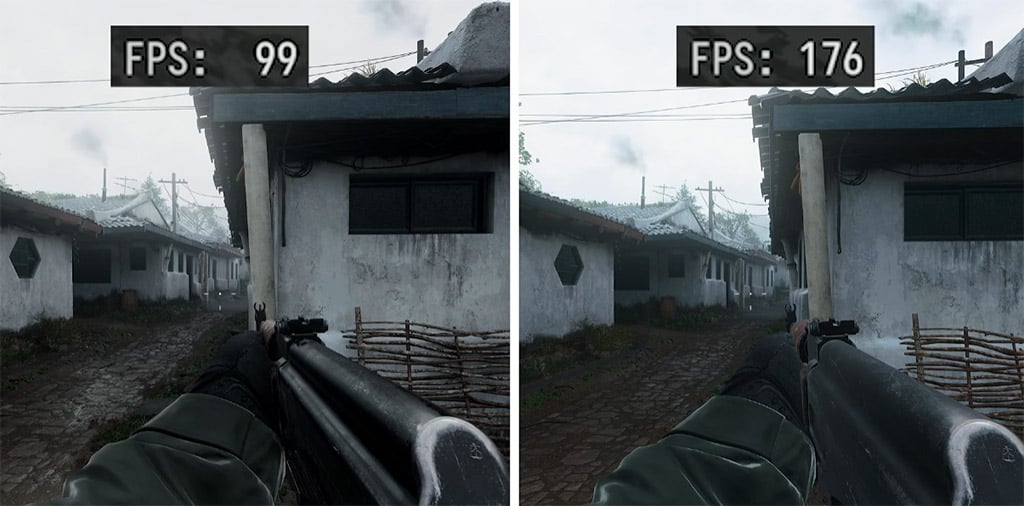
If FPS looks high but aiming feels delayed, separate rendered frames from generated frames before lowering everything. We recommend frame generation off for competitive testing: a higher displayed frame count does not mean the game samples your input at that same rate.
Competitive Graphics Baseline
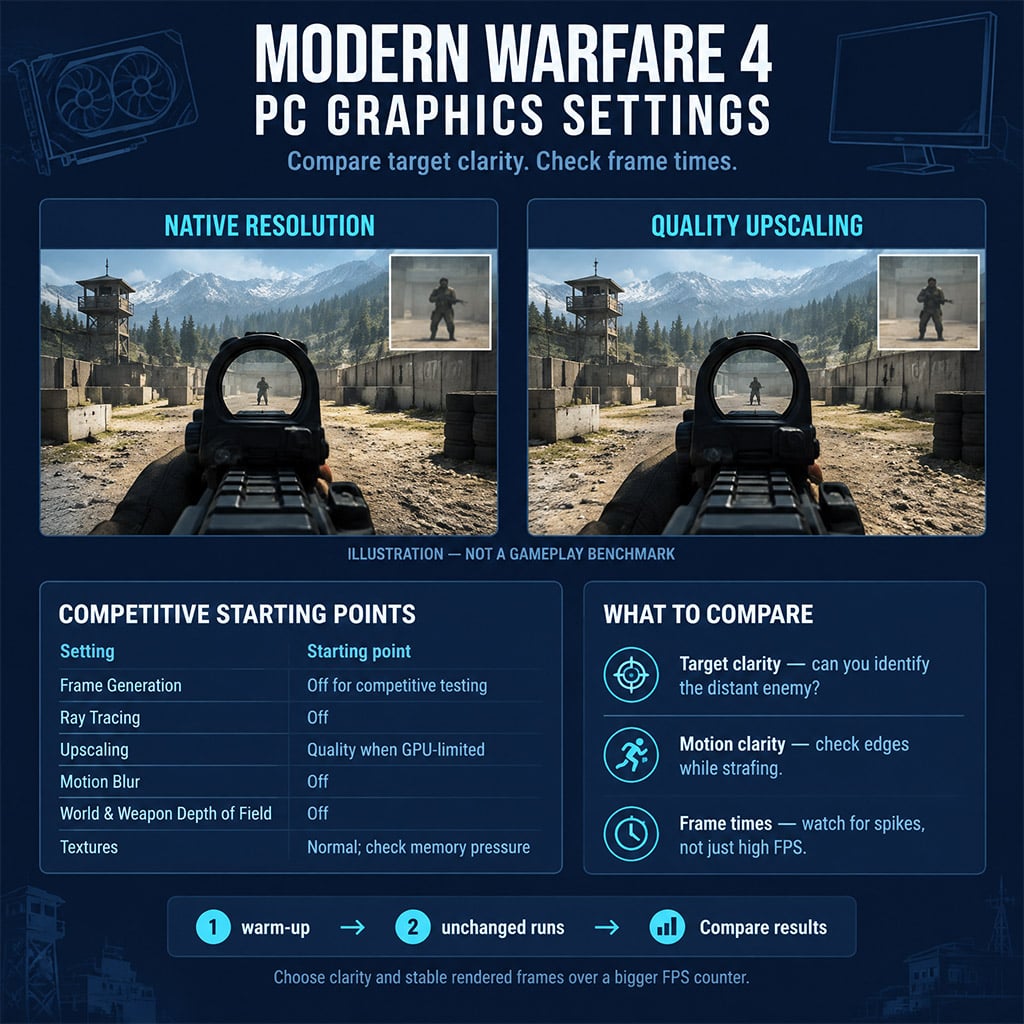
Start here, then spend GPU headroom on clarity rather than effects.
| Setting | Starting Point | Reason / Adjustment |
|---|---|---|
| Refresh rate | Monitor maximum | Confirm Windows and the game agree |
| Display mode | Compare fullscreen and borderless | Modern presentation paths do not make exclusive fullscreen universally faster |
| NVIDIA Reflex | On, if available | Test Boost separately; CPU limitation alone does not justify it |
| Frame generation | Off | Judge responsiveness using real rendered frames |
| Ray tracing | Off | Supported in MW4 multiplayer, but effects compete for GPU time |
| Upscaling | Quality when GPU-limited | Compare moving targets against native resolution |
| World/weapon motion blur | Off | Removes motion smearing |
| World/weapon depth of field | Off | MW4 provides separate controls for both |
| Textures | Normal, then inspect memory pressure | Lower only if residency or streaming becomes a problem |
| Anisotropic filtering | High | Usually inexpensive; keeps angled surfaces clearer |
| Shadows, volumetrics, reflections | Low, where available | Compare dark corners before accepting visibility losses |
At 1080p, reject aggressive upscaling if distant enemies become harder to identify—even when the FPS gain looks impressive.
Diagnose the Bottleneck With Repeatable Runs
For PC validation, finish any shader preparation first, run one warm-up and two unchanged benchmark passes, then compare averages and low-percentile results where reported.
- GPU-limited: Lower render resolution one step. If performance rises clearly, test upscaling, ray tracing and expensive lighting effects.
- CPU-limited: If resolution changes barely affect performance, inspect background processes, CPU temperatures and supported memory configuration.
- Intermittent hitches: Check frame-time spikes alongside memory use and streaming activity. Lower average graphics load will not necessarily cure asset-loading stalls.
Do not use a universal 30% CPU or 85% GPU cutoff. The benchmark's reporting method matters more than a copied threshold.
For VRR displays, begin with a cap 3–5 FPS below refresh rate—for example, 235–237 FPS on 240 Hz—and verify that your limiter does not overshoot. VRR, V-Sync and Reflex interact; that cap alone does not guarantee tear-free output.
FOV, Visibility and Audio: Preserve Useful Information
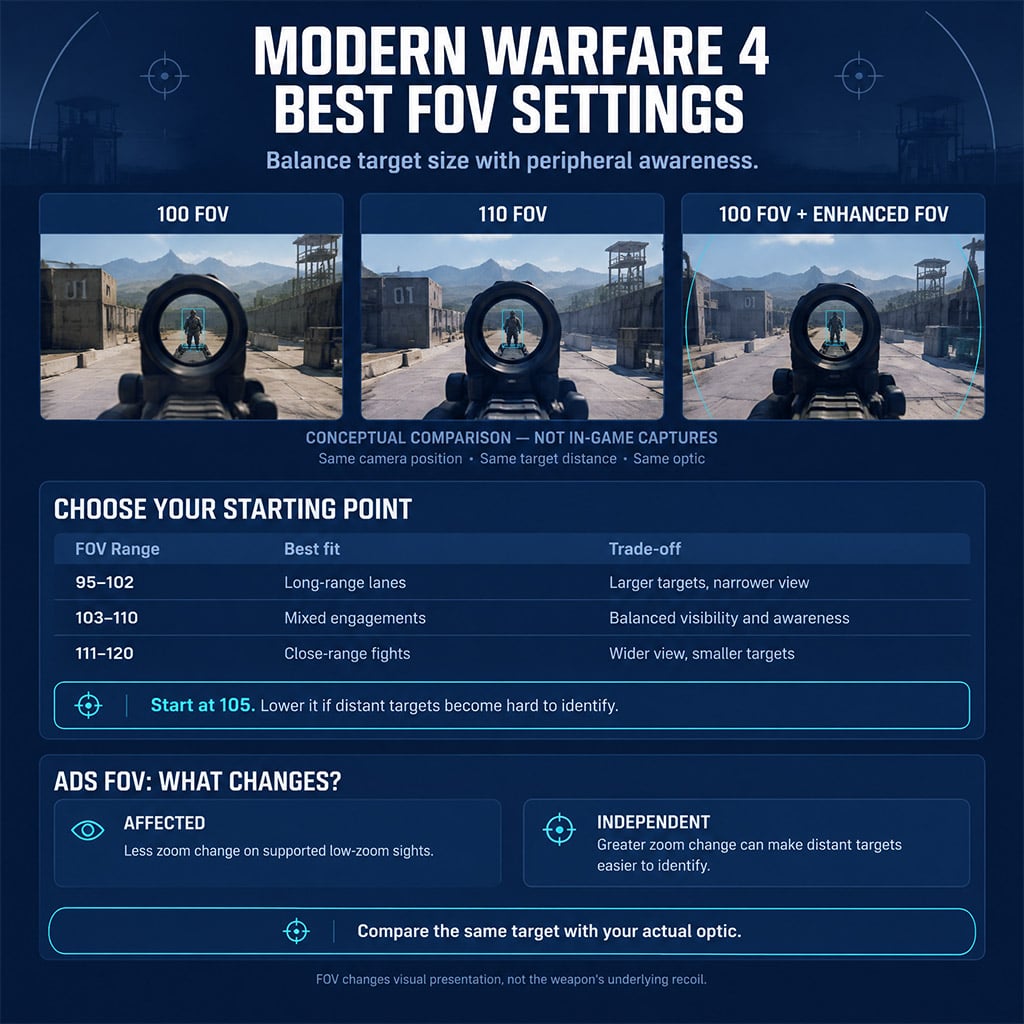
If you keep losing distant targets, increasing FOV makes the problem worse even when movement feels faster. We recommend 105 FOV as a starting point, then adjusting for engagement distance and screen size.
Choose FOV by the Shots You Actually Take
Use these ranges as preferences, not mechanical breakpoints.
| FOV / Option | Trade-Off | Use It When… |
|---|---|---|
| 95–102 | Larger central targets, less peripheral coverage | You hold longer lanes |
| 103–110 | Balanced target size and side awareness | You mix close and medium-range fights |
| 111–120 | Wider view, smaller central targets | Close-range awareness matters most |
| ADS FOV: Affected | Less zoom change on supported low-zoom sights | You prefer consistent wide-view tracking |
| ADS FOV: Independent | Greater zoom change on supported sights | Distant targets are difficult to identify |
| Enhanced FOV: PC only | Adds edge coverage without changing center FOV | You want peripheral information without raising central FOV |
Affected changes visual presentation, not the weapon's underlying recoil; use Independent when the extra target size helps you land shots.
For FOV validation, capture the same enemy at the same distance at 100 and 110 FOV, then compare identification speed. Repeat with your actual optic: scope behavior need not match iron sights.
Reduce Masking Without Destroying Cues
If explosions and announcers bury useful audio, lower competing channels before raising overall volume.
- Music: Start at 0 for competitive play.
- Dialogue: Try 40–50, then confirm you still hear useful warnings.
- Audio mix: Compare presets with the same headset at equal perceived loudness. Bass boost can mask footsteps rather than improve them.
- Camera movement: Choose the lowest available setting if camera shake disrupts tracking; a 50% label does not guarantee every effect is halved.
- Brightness: Use the game's SDR calibration instructions or the correct HDR setup. Do not apply SDR logo rules to HDR.
- HUD: Bring elements inward only until they remain readable without covering the fight.
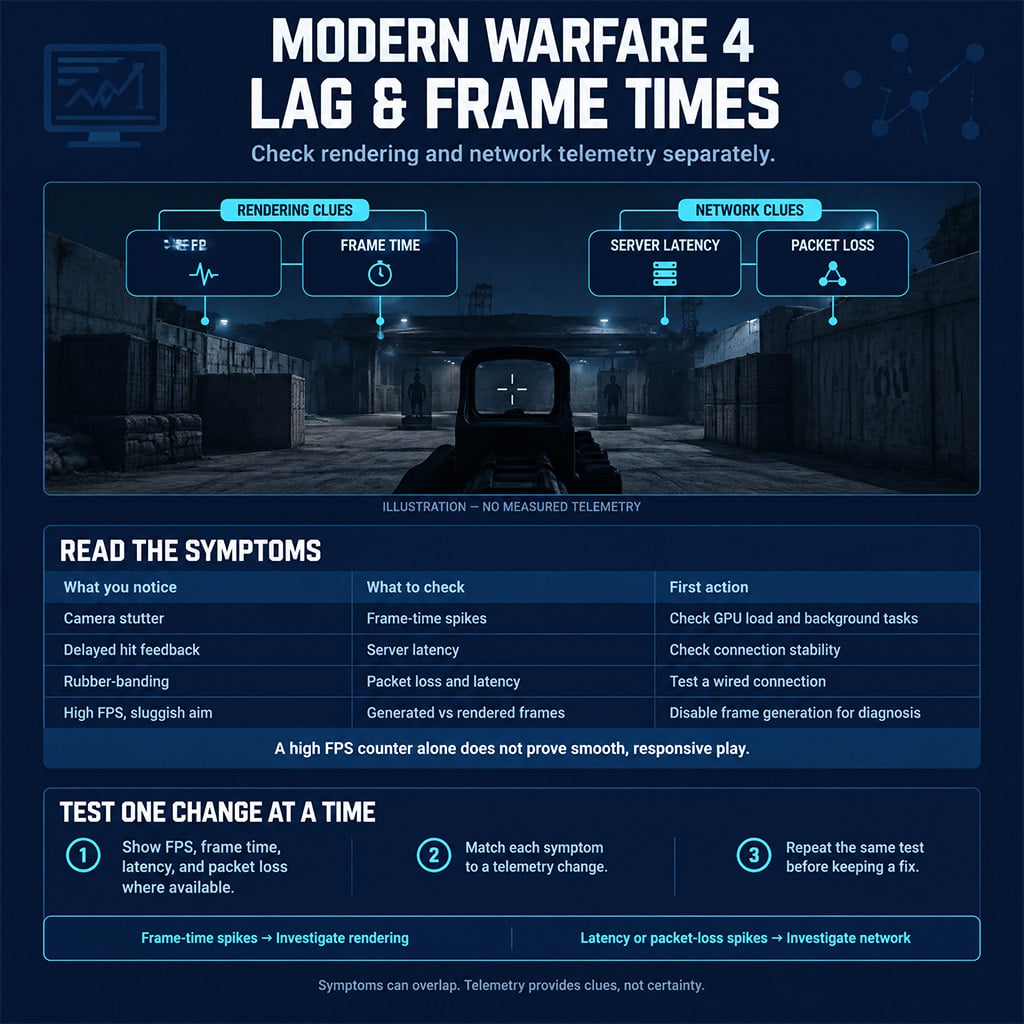
- Telemetry: Show FPS, frame time, latency and packet loss where available.
A smooth camera with delayed hit feedback points toward network trouble; a sharp frame-time spike points toward rendering or system performance. Check both before blaming your aim.
FAQ (Frequently Asked Questions)
What are the best Modern Warfare 4 controller settings?
Start with Tactical layout, a 0.80 ADS multiplier, aim assist on and the lowest drift-free dead zones. Try 1.35–1.50 look sensitivity only if your menu uses that decimal scale, then adjust one setting at a time.
Should I use 0.70 or 0.90 ADS sensitivity?
Use 0.70 for repeated overshooting and 0.90 when close-range tracking consistently falls behind. Start at 0.80, keep the response curve unchanged and compare repeated attempts with the same optic.
Does FOV above 103 disable aim assist in Modern Warfare 4?
There is no verified 103-FOV cutoff in the official material reviewed for this guide. Higher FOV makes central targets smaller, which can make controller tracking feel harder without establishing that aim assist has switched off.
Why does Modern Warfare 4 feel laggy despite high FPS?
High displayed FPS can hide low rendered FPS, uneven frame times or network delay. Disable frame generation for diagnosis, enable Reflex where supported, and compare frame-time spikes with latency and packet-loss telemetry.
Should I use Affected or Independent ADS FOV?
Use Affected for less zoom change and Independent when larger distant targets improve your aim. Compare both with your actual optic; reduced visual recoil does not mean reduced weapon recoil.

I’m Sofia Bergström, a Swedish Managing Editor covering FPS, competitive shooters, and extraction shooters for GGWTB. My guides focus on loadout trade-offs, positioning, and when to commit—or cut your losses. A weapon’s stats tell only part of the story; I focus on how it fits your role and the fight ahead.
Most Popular Posts
- MW4 Apex Attachments: The Complete Weapon-Breaking Guide (Every Kit Ranked)
- MW4 Beta Meta Weapons Class Setups: Attachments, Perks, and Tuning included
- Cod MW4 Warzone New Maps - Zodiac Resurgence Map & Hajan BR
- Modern Warfare 4 Carry Forward: XP Tokens, COD Points, Camos, Monster Energy
- Modern Warfare 4 Beta: Full Breakdown of Entrench, Maps, Zodiac Resurgence
- MW4 Beta Early Access Guide: Weapon Levels, Operators, Modes, Rewards
Popular Category Lists
- ARC Raiders / (354)
- Grow a Garden / (294)
- CoD: Black Ops 7 / (167)
- Star Citizen / (163)
- MLB 26 / (159)
- Monopoly Go / (153)
- ARK Survival Ascended / (128)
- Steal a Brainrot / (99)
- Blox Fruits / (74)
- Adopt Me / (74)
- Forza Horizon 6 / (72)
- Sailor Piece / (68)
- Grow a Garden 2 / (68)
- Diablo IV / (62)
- CoD: BLACK OPS 6 / (55)
- Aion 2 / (52)
- Path of Exile 2 / (48)
- Monster Hunter Wilds / (46)
- Windrose / (44)
- COD: Modern Warfare 4 / (43)