


 0
0 Created: May 3,2026 | Windrose
Windrose Base Download Guide: How to Install Spro’s Pirate Mansion Save on Your PC

Building a massive base in Windrose takes a serious amount of time, especially when it includes a full pirate town, docks, shops, farms, a fort, and a mansion. If you want to explore or build from an already finished world, installing a shared save file is the fastest way to do it.
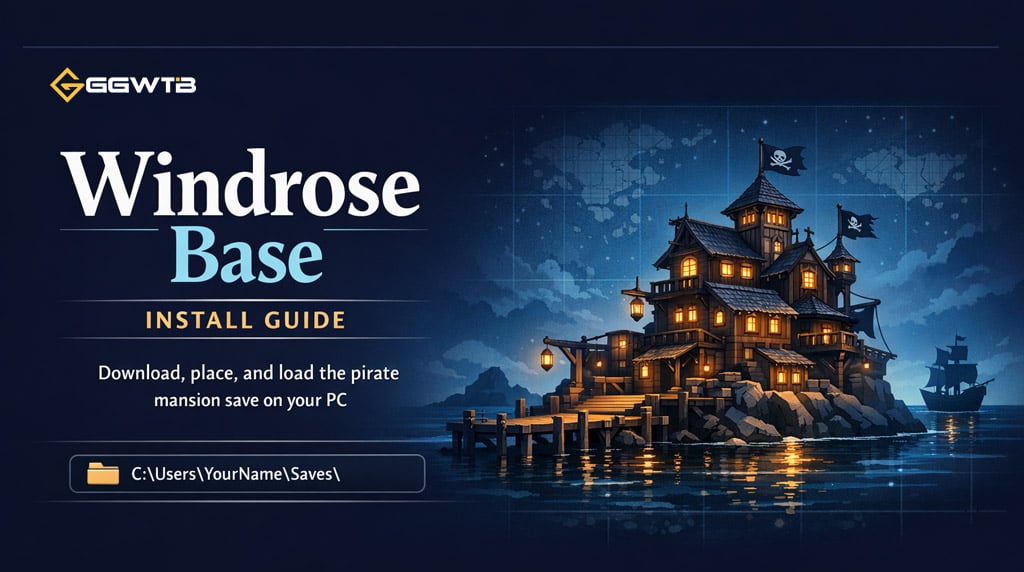
This guide explains how we can download the base, place it in the correct save folder, and avoid the usual mistakes that stop the world from showing up in-game.
- What You're Installing
- Before You Install the Save
- How to Download the Windrose Base Save
- Download Steps
- Correct Windrose Save File Location
- How to Install the Base
- Quick Install Checklist
- Performance Tips for This Base
- Common Problems and Fixes
- FAQ
- Where do I put the Windrose base save file?
- Do I need to create a world before installing the save?
- Can I install the ZIP file directly?
- Why is the base laggy?
- Can I host this world for friends?
- Summary
What You're Installing
This save is a large pirate-themed settlement, not a small starter base. It is designed more like a showcase world with practical rooms, decorative interiors, and plenty of roleplay detail.
| Area | What It Adds |
|---|---|
| Docks and pier | Harbor area with decorations and trading NPCs |
| Tavern and inn | Social space, rooms, balconies, outdoor seating |
| Town square | Central hub with shops and decorative paths |
| Fort | Defensive-style structure with cannons and ocean views |
| Pirate mansion | Main base with dining hall, library, storage, bedrooms, and war room |
| Courtyard farm | Central farming area with greenery and useful crops |
From a player's point of view, the best part is that this base feels lived-in. It is not just walls and storage boxes. There are work areas, rooms with purpose, scenic balconies, and enough detail to make the town feel like an actual pirate settlement.
The tradeoff is performance. Because there are so many objects, lights, windows, crops, and decorations, this world can be heavier than a normal save.
Before You Install the Save
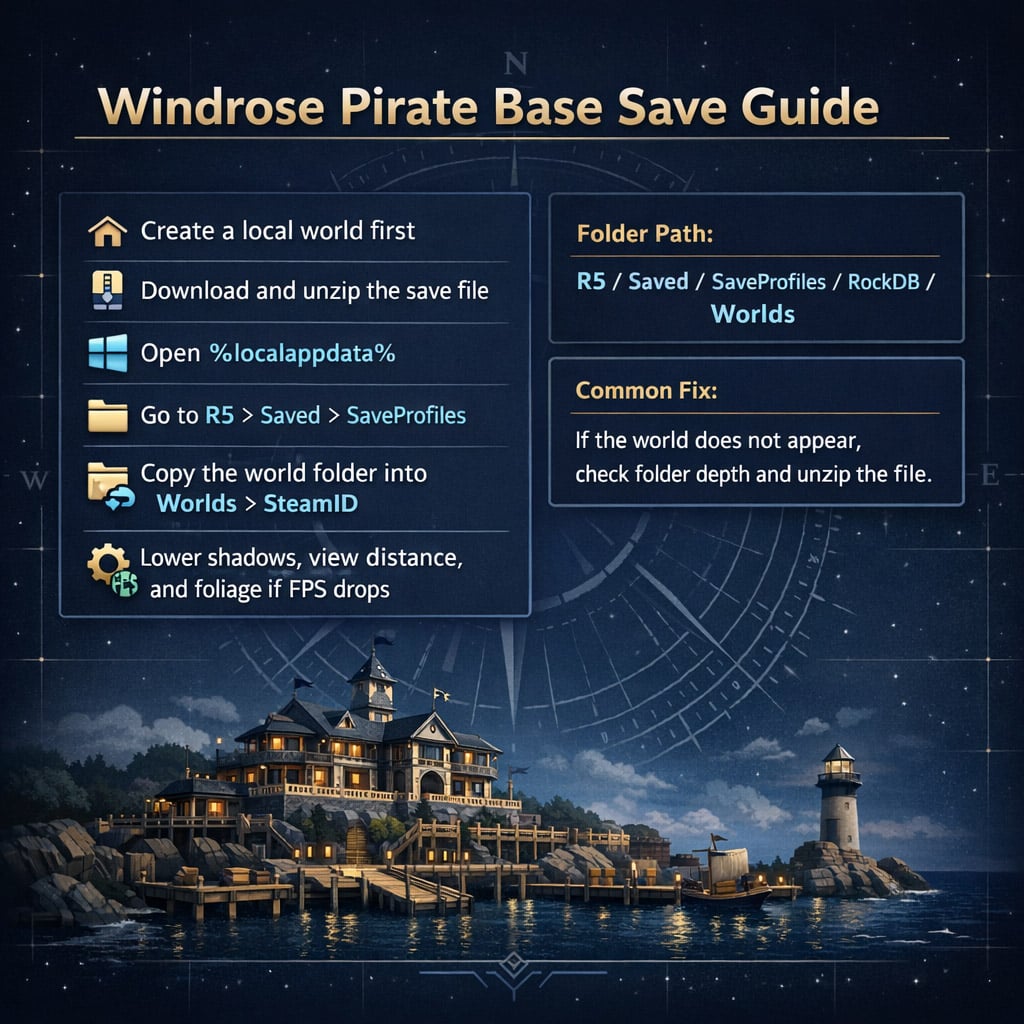
The most important step is simple: create your own Windrose world first.
Why? Because Windrose needs to generate your local profile and world folders before you can add another save file. If you skip this, you may not find the correct folder path.
| Before Installing | Why It Matters |
|---|---|
| Create one local world | Generates your save directory |
| Close the game | Prevents file conflicts |
| Download the save file | Gets the shared base world |
| Extract the ZIP file | The game cannot load the compressed archive directly |
| Back up your saves | Protects your existing worlds |
If you already have several worlds, backing up your save folder is still worth doing. It takes less than a minute and saves a headache if something gets placed in the wrong directory.
How to Download the Windrose Base Save
Download the shared world file from the provided cloud link, usually Google Drive.
After downloading, you will likely have a compressed file such as a .zip.
Download Steps
1. Download the Windrose base save file.
2. Go to your Downloads folder.
3. Right-click the file.
4. Choose Extract All.
5. Open the extracted folder and check that it contains the actual world save folder.
| File You Have | What To Do |
|---|---|
.zip file | Extract it first |
| Normal folder | Copy it into the save location |
| Folder inside another folder | Open it and copy the actual world folder |
If the world does not appear later, this is often the reason: the save folder was copied one level too high or too deep.
Correct Windrose Save File Location
On Windows, the save folder is inside Local AppData.
Press: Windows Key + R
Type: %localappdata%
Then follow this path: R5\Saved\SaveProfiles
From there, you will see folders with long numbers or IDs. These are normal. Your exact folder names will not match someone else's.
A typical full path looks like this:
%localappdata%\R5\Saved\SaveProfiles\[ProfileID]\RockDB\[Version]\Worlds\[SteamID]
| Folder | Meaning |
|---|---|
R5 | Main local data folder for the game |
Saved | Contains save and profile data |
SaveProfiles | Holds your player profile folders |
[ProfileID] | Your active profile ID |
RockDB | Save database folder |
[Version] | Game version folder, such as 0.10.0 |
Worlds | Where world saves are stored |
[SteamID] | Your Steam-linked world folder |
Choose the active profile folder, not a backup folder. If you are unsure, use the folder that was modified most recently after creating your test world.
How to Install the Base
Once you reach the final Worlds\[SteamID] folder, copy the extracted Windrose base folder into it.
The structure should look like this:
Worlds
└── [SteamID]
└── [Downloaded Base Save Folder]
Quick Install Checklist
| Step | Correct Action |
|---|---|
| Create a world first | Yes |
| Close Windrose | Yes |
| Extract the downloaded file | Yes |
| Copy the extracted folder | Yes |
Place it inside Worlds\[SteamID] | Yes |
| Copy the ZIP file directly | No |
After copying the folder, launch Windrose again. Go to your world list and check Offline or Host World. The installed base should appear there.
Performance Tips for This Base
This is a detailed world, so do not be surprised if FPS drops inside the town or mansion.
In a high-end setup, a large decorative base like this can run around 50–60 FPS inside the settlement, while open-world areas may run much higher. That tells us the issue is not always the game itself; dense builds simply cost more performance.
| Setting | Why Lower It First |
|---|---|
| Shadows | Expensive in large decorated interiors |
| View distance | Reduces how much the game renders at once |
| Foliage quality | Helps around farms, jungle views, and greenery |
| Reflections | Useful near docks, water, and glass-heavy areas |
| Effects quality | Can smooth out busy scenes |
If you notice stutters when turning the camera, lower view distance first.
If the base feels heavy indoors, reduce shadows.
If the courtyard or jungle-facing rooms lag, lower foliage quality.
This keeps the world playable without ruining the look of the build.
Common Problems and Fixes
Most installation problems come from the save being placed in the wrong folder. The good news: they are easy to fix.
| Problem | Likely Cause | Fix |
|---|---|---|
| World does not appear | Wrong folder location | Recheck the Worlds\[SteamID] path |
| Save folder is missing | No world created yet | Create a local world first |
| Game does not detect the save | ZIP file was copied | Extract it and copy the folder |
| Multiple profiles exist | Wrong profile selected | Use the newest non-backup folder |
| Heavy lag in the base | Build is very detailed | Lower shadows, view distance, foliage |
If the world still does not show up, open the folder you copied. If there is only one more folder inside it, you may need to move that inner folder into the Worlds\[SteamID] directory instead.
FAQ
Where do I put the Windrose base save file?
Place the extracted world folder here:
%localappdata%\R5\Saved\SaveProfiles\[ProfileID]\RockDB\[Version]\Worlds\[SteamID]
The IDs will be different on every PC.
Do I need to create a world before installing the save?
Yes. Creating a world first makes Windrose generate the correct save folders. Without this step, the folder path may not exist.
Can I install the ZIP file directly?
No. You need to extract the ZIP first, then copy the actual world folder into the save location.
Why is the base laggy?
The base is very detailed. It has a large town, mansion interiors, decorations, lights, crops, windows, and many placed objects. Lowering shadows, view distance, and foliage quality usually helps.
Can I host this world for friends?
Yes, if the world appears in your list. Just remember that hosting can add more load, especially if your PC is already struggling inside the base.
Summary
Installing the Windrose pirate base is mostly about putting the right folder in the right place. Create a local world first, download and extract the save, then copy the world folder into:
%localappdata%\R5\Saved\SaveProfiles\[ProfileID]\RockDB\[Version]\Worlds\[SteamID]
Once it appears in-game, you can explore the docks, town square, fort, mansion, courtyard, and all the detailed interiors without spending hours gathering materials. Because the build is large, expect some performance cost and adjust your graphics settings if needed.
Most Popular Posts
- Windrose Best Weapons Tier List, Traits, and Build Picks
- Windrose Completion Guide: Max Comfort, Weapons, Armor, Quests and Missable Items
- Windrose Best Rings, OP Necklaces, Blackbeard Maps & Upgrade Tips
- Windrose Agility Build Guide: Best Stats, Weapons, Talents, Food and Boss Setup
- Windrose Best Starter Build Guide: OP Rapier + Pistol Setup for Early to Mid Game
- Windrose OP Guide: Combat, Skills, Gear, Food, Jewelry, and Armor Sets
Popular Category Lists
- ARC Raiders / (345)
- Grow a Garden / (292)
- CoD: Black Ops 7 / (167)
- Star Citizen / (161)
- MLB 26 / (159)
- Monopoly Go / (152)
- ARK Survival Ascended / (126)
- Steal a Brainrot / (98)
- Blox Fruits / (74)
- Adopt Me / (73)
- Forza Horizon 6 / (72)
- Sailor Piece / (68)
- Grow a Garden 2 / (68)
- Diablo IV / (62)
- CoD: BLACK OPS 6 / (55)
- Path of Exile 2 / (48)
- Monster Hunter Wilds / (46)
- Aion 2 / (46)
- Windrose / (44)
- Donut SMP / (41)