


 0
0 Created: Aug 8,2025 | Battlefield 6
Battlefield 6: Fine-Tuning Graphics Settings for Max FPS on PC

Battlefield 6's Beta is now live, letting fans test the explosive action and jaw-dropping graphics ahead of the full launch. No matter if you're jumping in for Early Access or saving your spot for the Open Beta weekends, squeezing every frame per second out of your rig is key. This guide walks you through the best settings to blend killer visuals with buttery-smooth performance, so you can focus on the fight without frame dips getting in the way.
Joining the Battlefield 6 Beta
The Beta is rolling out in waves, with slots for Early Access fans and open weekends for everyone. Check the timeline below to plan your sessions:
Early Access—Closed Beta (Invite-Only)
August 7, 10:00 AM CEST until August 8, 10:00 AM CEST
To play, tune in to approved Twitch streams with Drops Enabled for 30 minutes straight. Link your Twitch and EA accounts by going to Twitch settings → Connections. After the stream, a code will drop in your Twitch inventory. Use that code on the Battlefield 6 site to unlock your copy.
- First Open Beta (No Code Needed): August 9, 10:00 AM CEST to August 11, 10:00 AM CEST
- Second Open Beta (No Code Needed): August 14, 10:00 AM CEST to August 17, 10:00 AM CEST
Jump in on either weekend to try out four brand-new maps: Liberation Peak, Empire State, Siege of Cairo, and Iberian Offensive. You'll also get to choose from four modes: Domination, Conquest, Squad Deathmatch, and Breakthrough. Best of all, anyone who plays during the Beta weekends will earn exclusive in-game rewards.
Fine-Tuning Graphics for Battlefield 6 on Mid-Tier Setups
Battlefield 6 is full of stunning skies, exploding debris, and realistic lighting that can hammer even powerful rigs. But for gamers on older PCs or budget builds, a few smart settings tweaks can keep the frame rate up while the action stays sharp. Use these guidelines for a clean compromise between looks and playability:
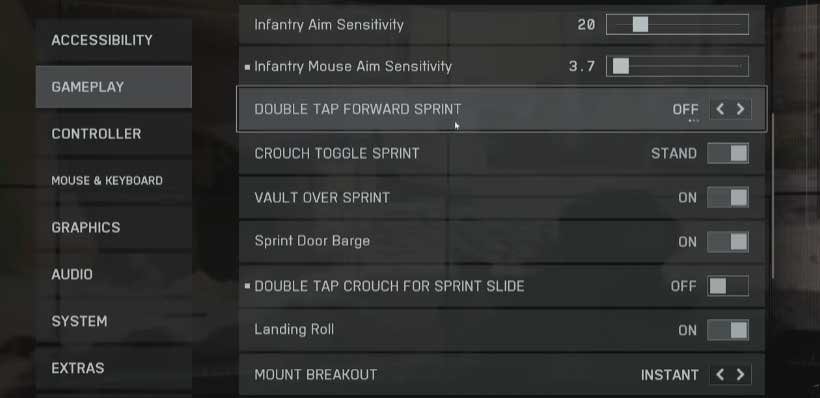
Graphics Settings
| Setting | Value |
|---|---|
| Graphics Quality | Custom |
| Texture Quality | High |
| Texture Filtering | High |
| Mesh Quality | Low |
| Terrain Quality | Medium |
| Foliage Quality | Low |
| Effects Quality | Low |
| Volumetric Quality | Low |
| Lighting Quality | Low |
| Local Lights & Shadows Quality | Low |
| Sun Shadows Quality | Low |
| Shadow Filtering | PCF |
| Reflection Quality | Low |
| Screen-Space Reflections | Off |
| Postprocessing Quality | Low |
| Ambient Occlusion & Global Illumination | Off |
| High-Fidelity Objects Count | Medium |
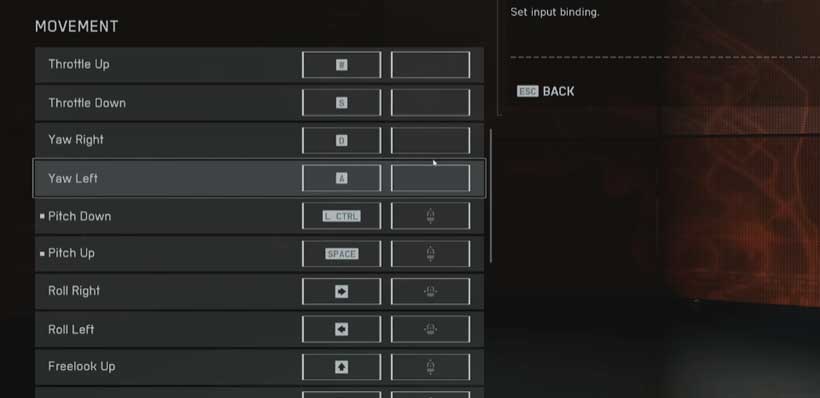
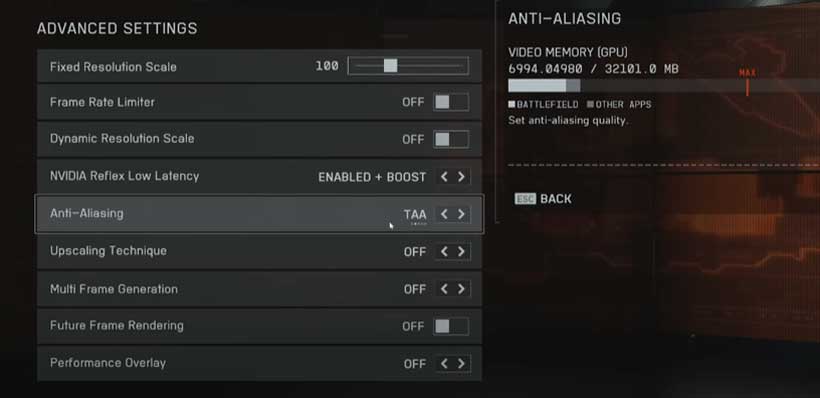
Advanced Settings
| Setting | Value |
|---|---|
| Resolution Scale | Fixed at 100% |
| Framerate Limit | On—set to max your monitor can handle (like 144Hz or 240Hz) |
| Nvidia Reflex Low Latency | On + Boost (for Nvidia cards) |
| Upscaling | Use DLSS (Nvidia) or FSR (AMD) |
| Upscaling Quality | Pick Quality for clearer images, or Performance/Ultra Performance to push up the FPS. |
| Nvidia Frame Generation | Off (too much input lag) |
| Future Frame Rendering | Off |
| Performance Overlay | Off |
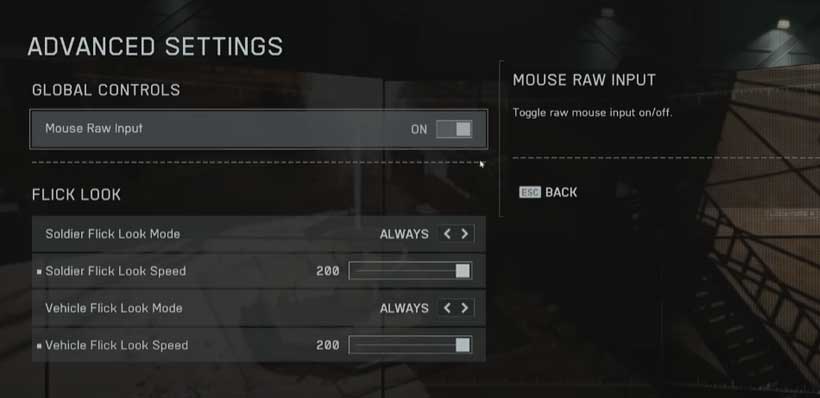
Camera Settings
| Setting | Value |
|---|---|
| Field of View (FOV) | 105–110 for extra situational awareness |
| Vehicle Third-Person FOV | 83 |
| Weapon FOV | Wide |
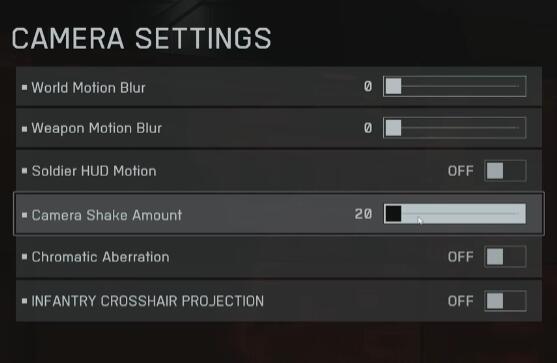
Motion and Effects
| Setting | Value |
|---|---|
| World Motion Blur | Off |
| Weapon Motion Blur | Off |
| Camera Shake | Set to 20% |
| Chromatic Aberration | Off |
| Vignette | Off |
| Film Grain | Off |
Performance Boost Tips
- Use Upscaling Tech: On Nvidia gear, turn on DLSS to get smoother frames without losing much quality. For AMD cards, FSR gives the same kind of lift.
- Put Framerate First: More FPS means less stutter and better aim. If your rig is pushing limits, turn down effects, lighting, and shadows to low.
- Turn Off Hungry Settings: Ditch Screen-Space Reflections and Future Frame Rendering if your hardware is struggling. Stability is better than flashy visuals.
- Watch Your Rig: Run MSI Afterburner or the in-game overlays to keep an eye on FPS and temps. If either is too high, it's time to tweak settings.
Final Thoughts
Battlefield 6 looks amazing and pulls you right into the action, but to get the best performance on mid-range or older PCs, you'll need to tweak the graphics settings a bit. The steps in this guide will help you run the game smoothly while still keeping most of the eye candy. If you've jumped into Early Access or plan to play the Open Beta weekends, these changes will make sure you hit the ground running. Get your PC ready, grab your access code if you still need it, and get ready to rule the battlefield!
Most Popular Posts
- Battlefield 6 Season 1 Ultimate Weapon Tier List: Best Guns, TTK Data, Loadouts, and Pro Tips
- Top 10 Low-Recoil BF6 Guns: Most Accurate Battlefield 6 Weapons
- Battlefield 6 AFK XP After Patch: Easy Passive Leveling Using 4-Minute Portal Lobbies
- How To Unlock the PSR (M98B) in Battlefield 6 Fast?
- Battlefield 6 Fast Weapon Leveling Guide: Unlock Attachments
- Battlefield 6 Top 10 Meta Weapons: Builds, TTK Insights, and Practical Tips
Popular Category Lists
- ARC Raiders / (350)
- Grow a Garden / (294)
- CoD: Black Ops 7 / (167)
- Star Citizen / (162)
- MLB 26 / (159)
- Monopoly Go / (152)
- ARK Survival Ascended / (127)
- Steal a Brainrot / (99)
- Blox Fruits / (74)
- Adopt Me / (74)
- Forza Horizon 6 / (72)
- Sailor Piece / (68)
- Grow a Garden 2 / (68)
- Diablo IV / (62)
- CoD: BLACK OPS 6 / (55)
- Aion 2 / (50)
- Path of Exile 2 / (48)
- Monster Hunter Wilds / (46)
- Windrose / (44)
- Donut SMP / (41)