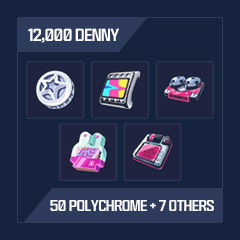
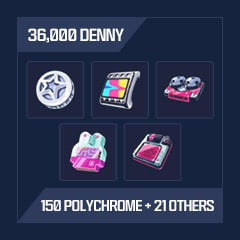
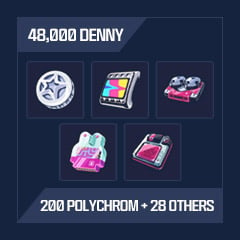
Zenless Zone Zero Twitch Drops is an exciting event that rewards players for watching live streams on Twitch. You can earn in-game assets only by watching your lovely live streamers’ content, and linking your Twitch and Zenless Zone Zero accounts.
What actually Drops on Twitch?
As a player, in-game objects for watching a live stream on Twitch of the specific events are granted through Twitch Drops. These events Set a time frame giving the players a chance to acquire, exclusive items, skins and other rewards.
Key Details:
- The conditions required for participation: Zenless Zone Zero account and a Twitch account must be linked.
- How rewards are distributed: After a Twitch account has been claimed, the in-game computer will relay the sent items within forty-eight 48hours.
How to Get Zenless Zone Zero Drops In Twitch?
Steps to Link Your Accounts:
- Access the Zenless Zone Zero official website and log in to your account.
- In the menu, locate the settings option and click on it to head to the settings page.
- Locate the option that states: link my Twitch account and click on it.
- Complete the process by following the appropriate instructions on the screen.
Watching Streams:
- Watch the qualifying Twitch streams during the event time.
- While watching the streams, make sure that the Twitch account which was previously linked is logged in.
Reward Timeline and Claiming Process
- Watch Streams: View appropriate streams on Twitch while the event is running.
- Claim on Twitter: When you have met the viewing requirements, visit the Twitch Drops inventory page and click "Claim".
- Delivery Time: All claims will be sent to the game's mailbox system within 24 hours of the post-claim action.
- Reward Validity: Reward emails are active for 30 days, do not forget to claim yours.
Notes: The rewards may not show up instantly but they may get delayed because of the high server traffic – just wait.
Important Rules
- One Account Per Reward: One twitch account can link only with one Zenless Zone zero account (ID) only; One reward type can also only be redeemed on an account once.
- Account Linking Cut-Off Point: Link your accounts within 7 days i.e after 7*24 hours from the end of the event to receive any rewards.
- Clashing Of Rewards Is Not Allowed: Any previous reward which was already claimed in an event cannot be claimed in this event. Only new rewards are eligible.
ZZZ Twitch Drops: FAQs
Q: Can I Claim Rewards Multiple Times?
A: No, as stated above any reward can only be claimed once per linked account.
Q: What Happens If I Don't Bind My Accounts?
A: After 7 days from the end of the event, if the accounts are not bound together, the twitch unclaimed rewards will be unbound.
Q: What Should I Do If My Reward Is Delayed?
A: Due to server load, rewards can take 24hrs to be delivered and If you have not received your reward during that time please quote customer support.




 0
0