


 0
0 Created: Aug 11,2025 | Battlefield 6
Battlefield 6 FPS Boost: Enable the EA App Overlay for Massive GPU Utilization Gains

If you are playing the Battlefield 6 beta on PC through the EA App and notice your powerful GPU loafing at around 40–55% usage, you are not alone. A quirky workaround discovered by multiple players dramatically increases GPU utilization—and with it, your frame rate. As a competitive-focused player, I tested and structured the findings below so you can apply them quickly and safely.
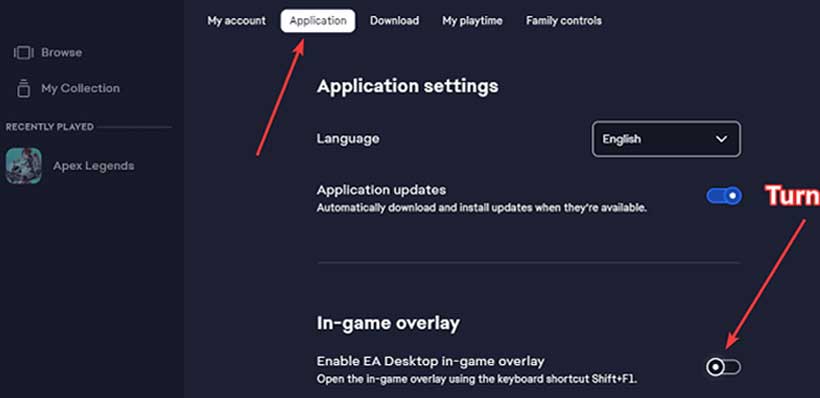
Core Fix: Enable the EA App In‑Game Overlay
Several users report that simply turning ON the EA App's in‑game overlay immediately pushes GPU load closer to expected levels (often 85–98%), resulting in gains of roughly 40–70 FPS, in some cases pushing frames into the 120–160+ range depending on hardware and resolution.
Why This Matters
- Low GPU usage in a demanding shooter usually signals:
- A CPU bottleneck (not the case for many here; CPUs show headroom).
- A scheduling/priority or API layer issue.
A bug in how the game session is initialized under certain launch conditions. Enabling the overlay seems to flip a runtime flag or maintain a foreground focus state that allows the rendering pipeline to fully ramp. This almost certainly indicates a beta-stage bug rather than intended behavior.
Step-by-Step: How to Enable the Overlay (EA App Version)
- Open the EA App.
- Click your profile avatar (top right) and select Settings.
- In the left sidebar choose Application.
- Scroll near the bottom until you find In-game Overlay.
- Toggle it ON.
- Launch Battlefield 6.
- Press Shift + F1 in a match to confirm the overlay opens (this verifies it's active).
- Monitor GPU usage (use MSI Afterburner, HWiNFO, or Radeon/NVIDIA overlays) and note FPS deltas.
Steam Users
Players launching the beta via Steam generally report normal GPU utilization without needing the EA overlay. If you are on Steam and performance is already scaling with your hardware, you likely do not need this tweak.
Testing Methodology Recommendation
To validate the change properly:
- Choose a Repeatable Scenario: e.g., the same map section or a bot-filled range.
- Disable Adaptive Sync / VRR momentarily to see raw fluctuation (optional).
- Record 2–3 minute captures pre-change and post-change using PresentMon, CapFrameX, or OCAT.
- Compare: Average FPS, 1% low, 0.1% low, GPU utilization (%), power draw (W), and frame time variance (ms).
- Only trust improvements if frame time stability also improves (spiky frame times feel worse even if FPS is higher).
Possible Explanations (Speculative)
- Overlay Hook Forces Different Swap Chain Mode: The injection layer might alter how frames are queued (e.g., flipping vs. blitting path), reducing latent CPU-idle periods.
- Foreground Focus / Input Layer Timing: The overlay could prevent Windows from applying a lower priority or power-saving state.
- Thread Scheduling Nudge: Overlay DLL injection may slightly alter thread affinity or wake-up timing, letting the render thread feed the GPU more consistently. Because this is speculative and tied to a beta build, expect it to be patched—either removing the need for the overlay or eliminating the workaround.
Additional Performance Tips (While You're Tweaking)
- Turn Off Frame Capping: Unless you use a tight RTSS cap just below refresh for latency management.
- Optimize DLSS/FSR/XeSS Mode: Performance or Balanced modes can shift your GPU from underutilized to properly loaded; then refine for clarity.
- Check CPU Parking / Power Plans: Use Windows High Performance or Balanced with minimum processor state > 50% (avoid extreme tweaks; just ensure no aggressive down-clocking).
- Disable Background Overlays You Don't Need: Discord, Xbox Game Bar, NVIDIA Highlights—keep only what helps (contradiction? If you rely on the EA overlay for now, keep that one).
- VRAM Management: Don't max Texture + Resolution Scale + Ray Tracing simultaneously on 8 GB cards; paging can stall the pipeline and mimic a utilization cap.
- Enable Resizable BAR (if supported): Can yield smoother asset streaming.
- Update Drivers: Use the latest Game Ready / Adrenalin driver specifically listing Battlefield 6 beta optimizations.
- Clear Shader Cache (Once): Driver control panel (NVIDIA) or disk cleanup to avoid corrupted shader states impacting load ramp.
- Fullscreen Exclusive Mode: If the game allows, pick true fullscreen rather than borderless to reduce compositing overhead (unless alt-tabbing often).
- Latency Tools: NVIDIA Reflex / AMD Anti-Lag may help consistency; measure—sometimes turning them off can raise absolute FPS if you're CPU bound, but usually they help.
When NOT to Use the Overlay
- If you notice stutters introduced after enabling it (rare but possible).
- If anti-cheat flags any unusual behavior (always check official notes; overlays are generally tolerated but risk shifts near launch).
- If the final release patches the utilization issue—remove unnecessary overlays for cleanliness and slightly reduced input latency.
Monitoring Success Metrics
- A good outcome: GPU utilization rises >85%, average FPS increases, 1% lows improve or hold steady, frame time graph flattens (fewer >20 ms spikes at your target refresh).
- A bad outcome: Higher average FPS but worse 1% lows (indicates instability) or new stutters (overlay conflict).
Troubleshooting If It Doesn't Work
- Toggle Overlay Off → Apply → On again.
- Run EA App as Administrator once (some hook layers require permission).
- Disable conflicting overlays (turn off Steam overlay if launching through EA directly).
- Verify no third-party OSD (e.g., old Rivatuner profile) is forcing a frame cap.
- Repair Game Files in EA App.
- Reboot after first enabling (some users report the hook only engages after a fresh session).
Frequently Asked Questions
Q: Is this safe?
A: Functionally yes; it's an official feature. Still, minimize redundant overlays.
Q: Will this get me banned?
A: Overlays from the platform's own launcher are standard. Always read beta patch notes; if they warn about third-party hooks, reconsider.
Q: My CPU is at 100%, GPU still 60%.
A: Then you are CPU bound. Lower CPU-intensive settings: Mesh Quality, Animation Quality, Terrain/Destruction settings, and large player-count modes stress the CPU more.
Q: Should I just wait for a patch?
A: If performance is already acceptable (e.g., >120 FPS at your refresh), you can skip this. Competitive players wanting the smoothest frame pacing may still test it.
Risk / Reward Summary
- Low effort, reversible.
- High potential gain (40–70 FPS as reported).
- Temporary workaround until official optimization.
Summary
A beta-specific quirk in Battlefield 6 appears to throttle GPU usage for some EA App users, capping performance. Enabling the EA App's in‑game overlay (Shift + F1) often restores full GPU utilization and yields substantial FPS gains. While the exact technical cause remains unclear, this workaround is quick to apply, easy to test, and likely temporary. Validate improvements with proper metrics, combine with standard optimization practices, and be ready to drop the overlay once a patch resolves the underlying issue.
Most Popular Posts
- Battlefield 6 Season 1 Ultimate Weapon Tier List: Best Guns, TTK Data, Loadouts, and Pro Tips
- Top 10 Low-Recoil BF6 Guns: Most Accurate Battlefield 6 Weapons
- Battlefield 6 AFK XP After Patch: Easy Passive Leveling Using 4-Minute Portal Lobbies
- How To Unlock the PSR (M98B) in Battlefield 6 Fast?
- Battlefield 6 Fast Weapon Leveling Guide: Unlock Attachments
- Battlefield 6 Top 10 Meta Weapons: Builds, TTK Insights, and Practical Tips
Popular Category Lists
- ARC Raiders / (350)
- Grow a Garden / (294)
- CoD: Black Ops 7 / (167)
- Star Citizen / (162)
- MLB 26 / (159)
- Monopoly Go / (152)
- ARK Survival Ascended / (127)
- Steal a Brainrot / (99)
- Blox Fruits / (74)
- Adopt Me / (74)
- Forza Horizon 6 / (72)
- Sailor Piece / (68)
- Grow a Garden 2 / (68)
- Diablo IV / (62)
- CoD: BLACK OPS 6 / (55)
- Aion 2 / (50)
- Path of Exile 2 / (48)
- Monster Hunter Wilds / (46)
- Windrose / (44)
- Donut SMP / (41)